
Click here for the InDesign version
Klicke hier für die deutsche Version dieser Seite
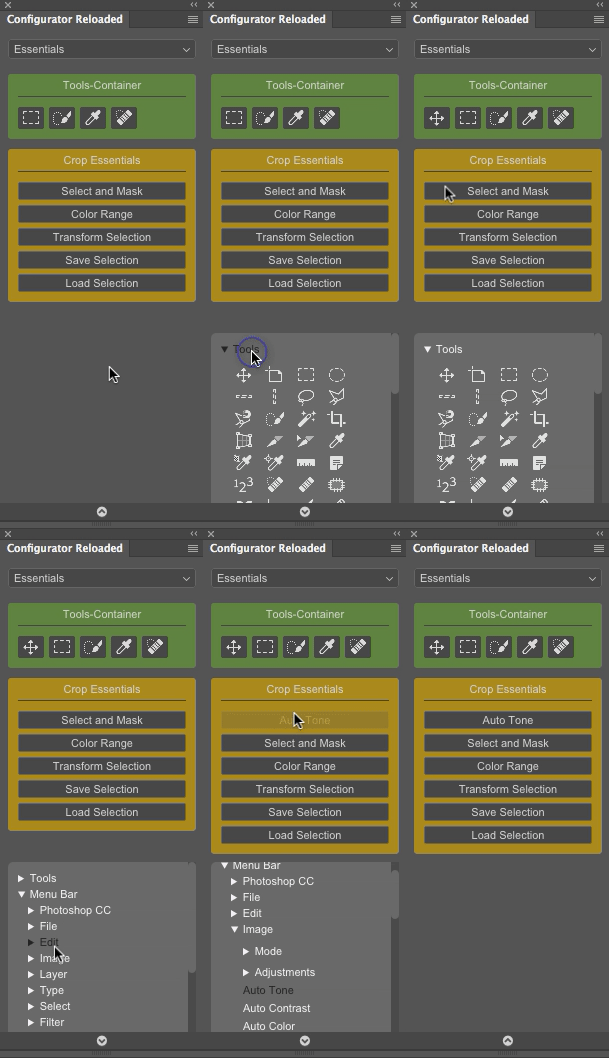
Create your own Photoshop panels: tools, menu items, actions, brush presets, tools and scripts with drag & drop.

User friendly
Customizable
Time-saving
New in Version 1.1
Brush Presets, Tool Presets, Exporting/Importing Workspaces and more
New in Version 1.2
Brush Thumbnails and bugfixes
New in Version 1.4
Customize the appearance and bugfixes
New in Version 1.5
Tooltips and possibility to lock buttons
New in Version 1.6
Open up to 3 panels, hide specific areas
TRIAL VERSION
Configurator Reloaded for PhotoshopFree Trial Version
(Alomst) fully functional
Saves no changes at panel restart
FULL VERSION
Configurator Reloaded for Photoshop54,90 46.90
Create your own Photoshop panels
Fast – Easy – Clear
Free future updates!
One-time payment
BUNDLE PS + ID
Configurator Reloaded for Photoshop and InDesignSave 20%!
Configurator Reloaded for Photoshop
Configurator Reloaded for InDesign
Free future updates!
One-time payment
"Simple, flexible and practical. The workspaces and containers allow me to combine all Photoshop functions, tools, actions and scripts for specific tasks in a tiny panel. Especially when working with my Wacom tablets, every function is just a click away and I don't need to reach for the keyboard. Recommendable!"
 Olaf Giermann
Photoshop expert and editor at “DOCMA – Magazine for image editing”
FAQ / Instructions
Which version of Photoshop is required?
Configurator Reloaded runs under Photoshop CC 2015, CC 2015.5, CC 2017, CC 2018 and CC 2019.
Older versions (CC 2014, CC, CS6 and older) are not supported.
Windows and Mac.
Which payment options are available?
- Credit Card
- Bank Wire Transfer
- PayPal
- Sofort
How do I receive the panel?
On how many computers am I allowed to use the panel?
If another person also wants to use the panel, a second license is required.
How do I install Configurator Reloaded?
Which buttons can be added to the panel?
- All tools (Move Tool, Eyedropper Tool, Brush Tool, etc.)
- Commands behind the menu bar (File > New, Filter > Sharpen > Unsharp Mask, Select > Color Range, etc.)
- Brush Presets (Thumbnails)
- Tool Presets
- Actions
- Custom scripts
- Other helpful commands (Layer Blending Modes, Nik Collection, Topaz Labs, Merge Visible Layer to new Layer, etc.)
How to add new buttons?
- Click on the arrow icon at the bottom of the panel
- Choose the desired category
- Drag and drop the desired command into a container *
* Tools can only be added to Tools Containers * Brushes can only be added to Brushes Containers

How can containers/buttons be colored?

How can I change the order of buttons/containers?

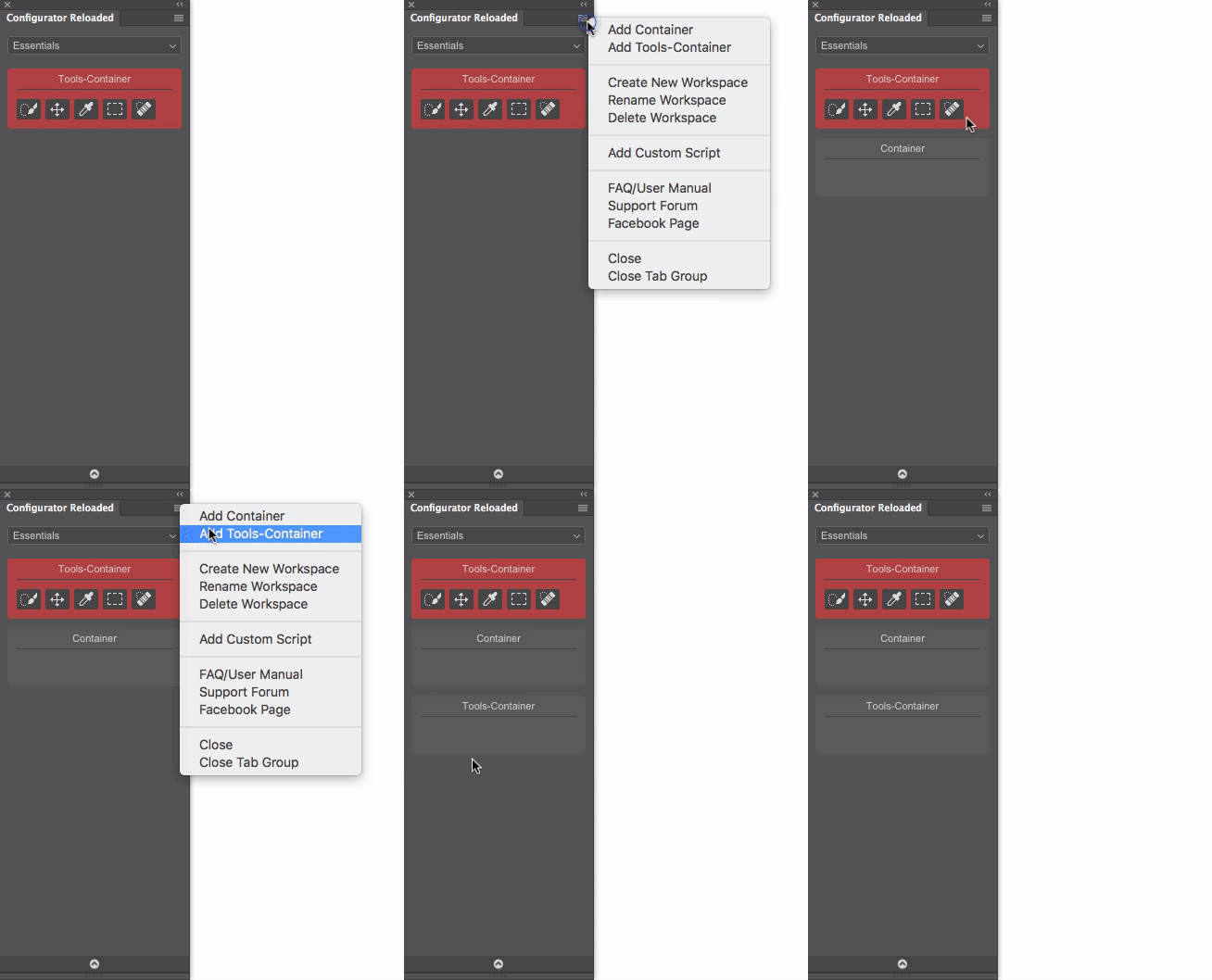
How can new containers be added?
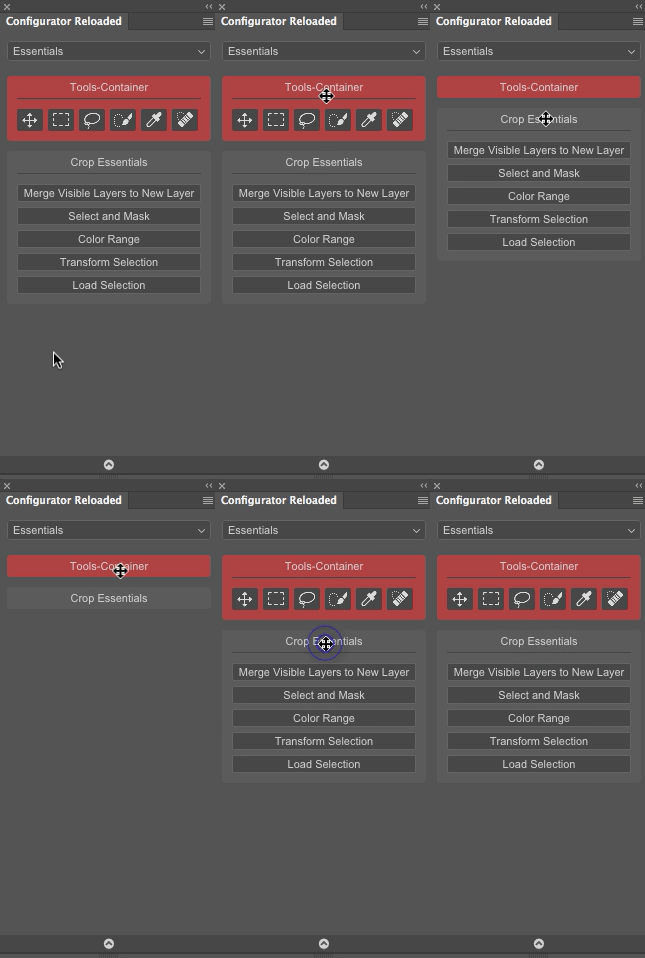
How can containers be collapsed/extended?
How can the text size and width of the buttons be adjusted?
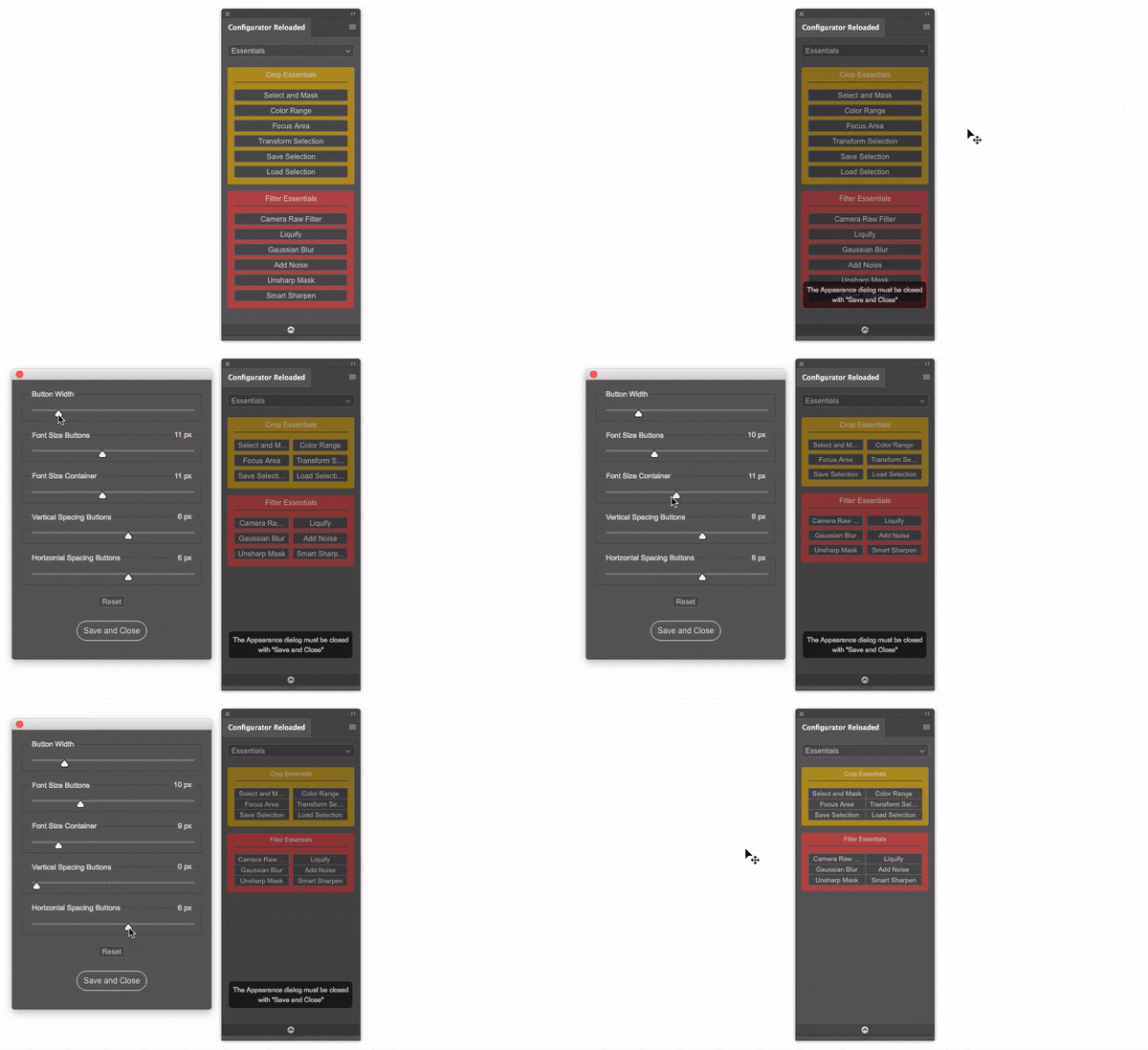
How can buttons be locked?
How can I rename buttons/containers?
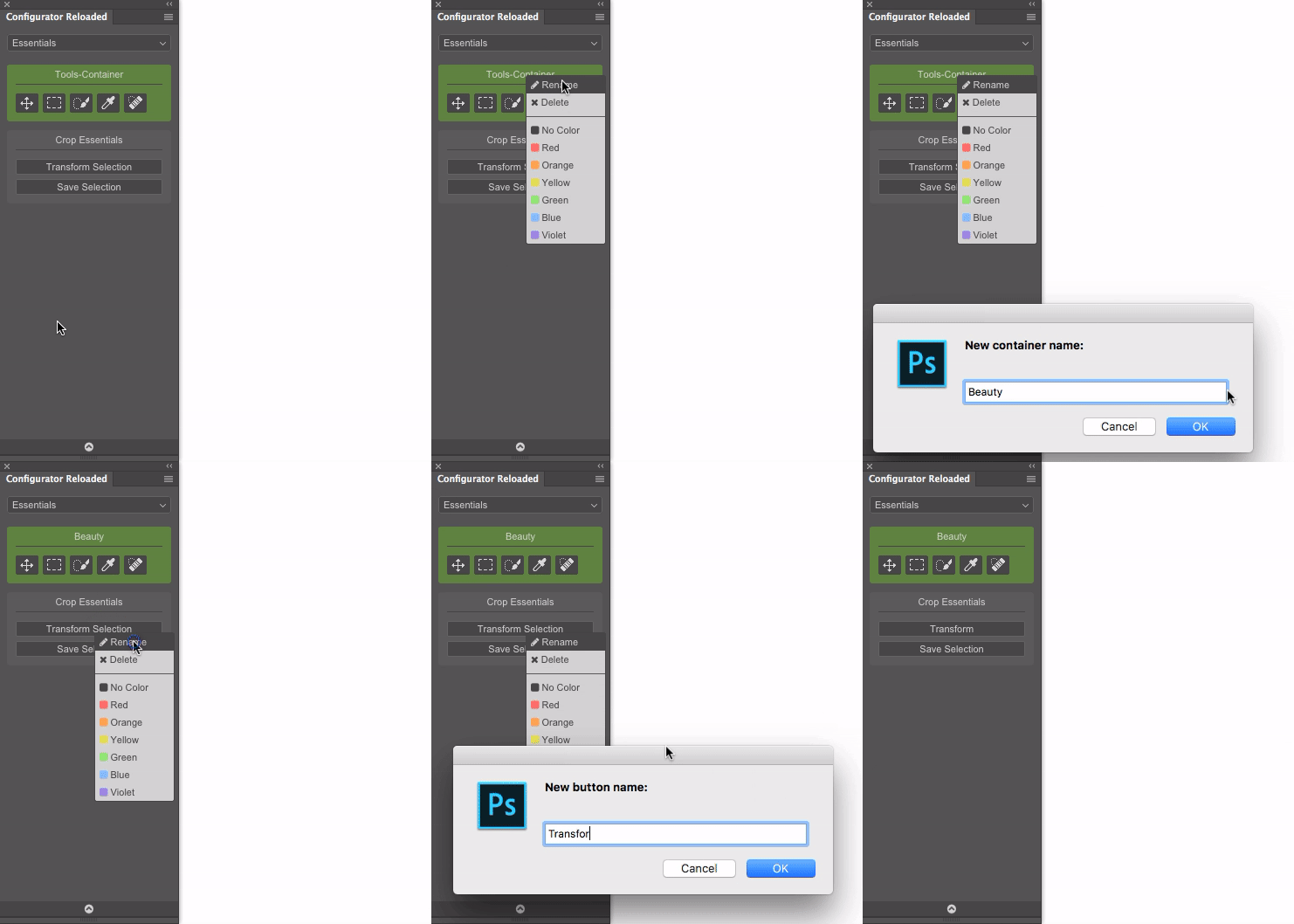
What are workspaces and how can they be edited (create, rename, delete)?
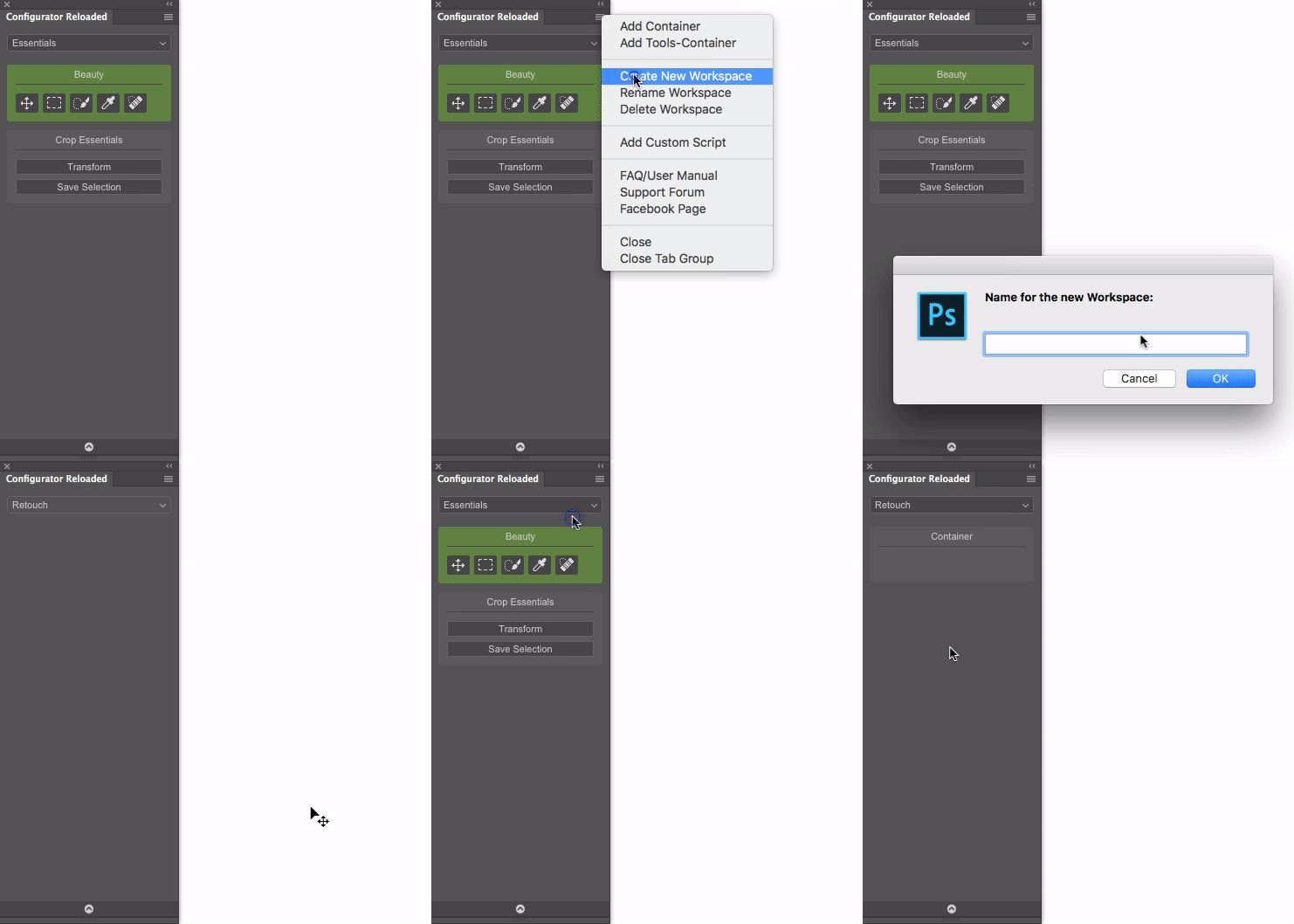
How can tooltips be activated/deactivated?
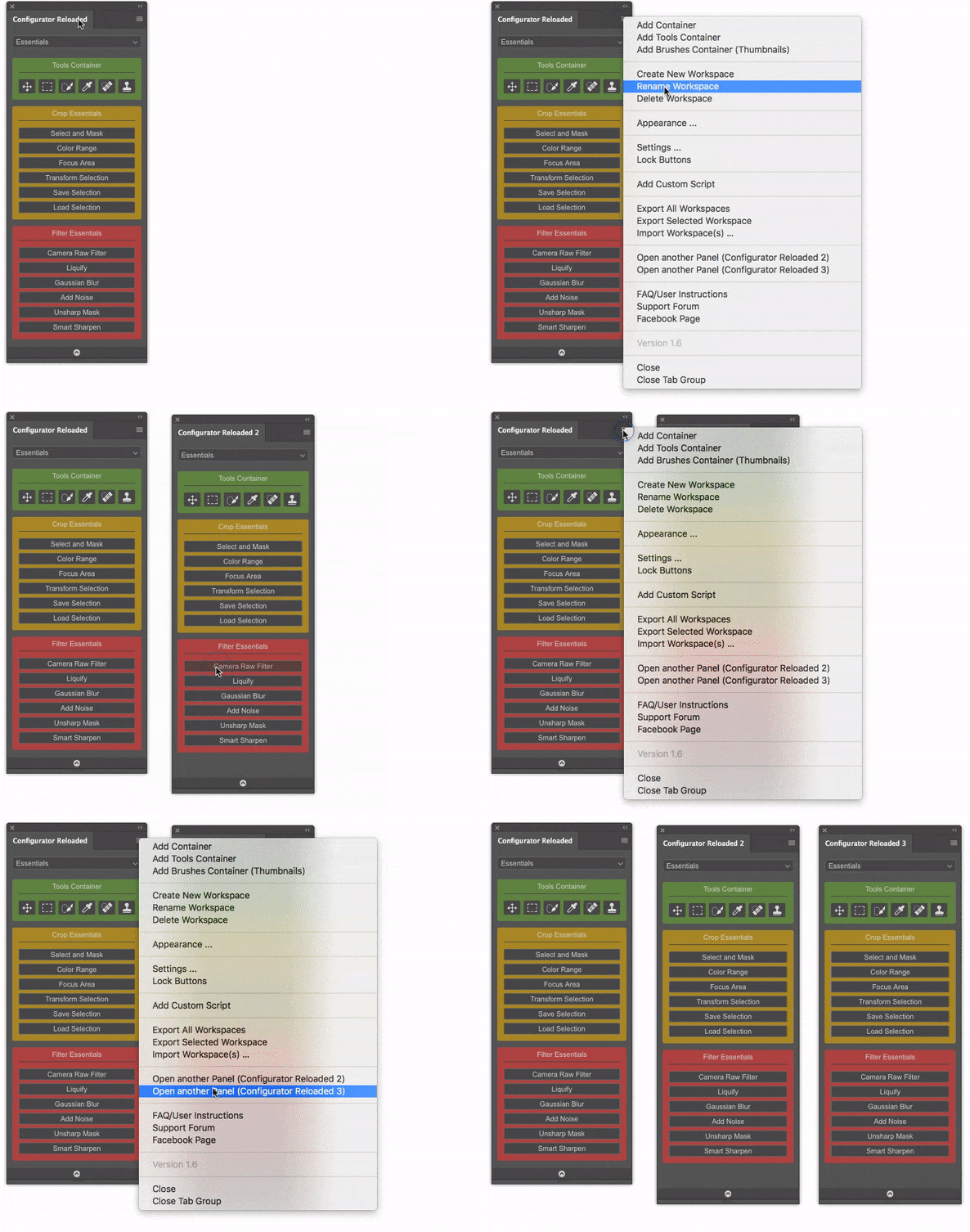
How can other panels be opened?
- Via the Panel Menu
- The name of the panels can be changed (on the first call or later in the respective panel menu under “Rename Panel”). The name of the main panel cannot be renamed
- All settings (appearance, tooltips, etc.) work separately for each panel
How to add your own scripts?
The script file must be an ExtendScript file (extension .jsx).
The button is added in the first container of the currently selected workspace.

Can I export standalone panels?
However, it is possible to export workspaces. For the import it is necessary to have Configurator Reloaded.